
Once email notification is enabled, it is possible to set up events that result in user notification.
On the homepage:
- Click on the name at the top right.
- Click on "My account".
- For the "Preferences" >"Email notification" section, uncheck the "Use default configuration" option.
- Check the notification you want to be activate.
- Validate the changes by clicking on the "Save" button at the bottom of the form.
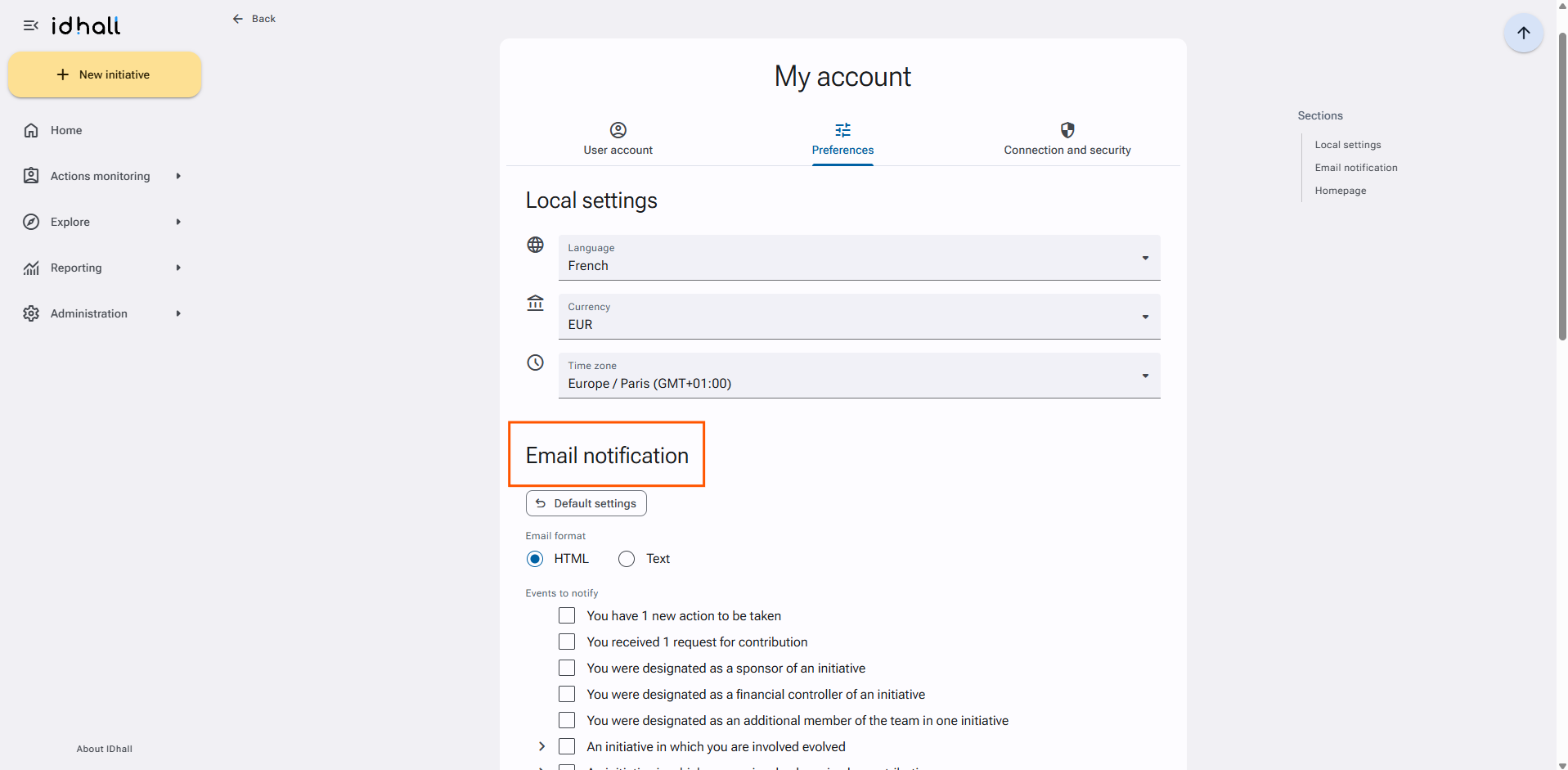
For the format of e-mails:
- Two formats are available: HTML or text.
Within the possible notifications:
- You have 1 new action to be taken: warns the user of a new action for which he is responsible on an initiative.
- You have received 1 request for contributions: notifies the user of a request for a contribution on an initiative.
- You have been designated as (...) of a new initiative: notifies the user of his or her assignment to the position of sponsor/financial controller/team member.
- An initiative in which you are evolved: notifies the user of the change in status of an initiative of which he or she is the author or writer/owner/ processor/sponsor/financial controller/additional member.
- An initiative which you are involved received a contribution: notifies the user of a contribution made on an initiative of which he is the author or writer/owner/processor/task owner/sponsor/financial controller/additional member
- A contribution was made in response to one of your requests or contributions.
- Your user account has changed: notifies the user of any changes made to his user account.