
It may be convenient for you or users within your organization to have the application launch automatically when your computer starts (Windows or Mac). Here’s how!
On Windows
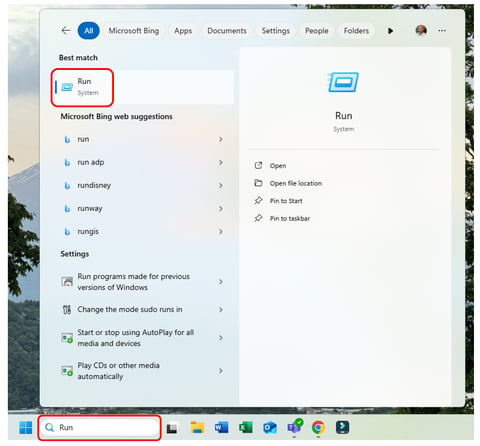
- In the Windows search bar, type "Run", then click on the Run tool.
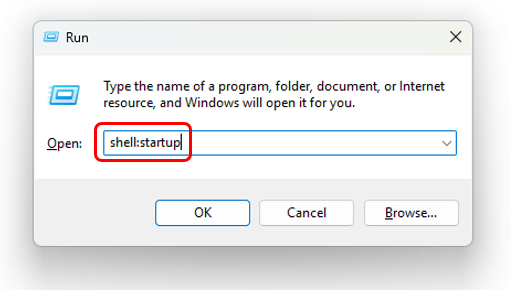
- In the window that appears, type "shell:startup", then click "OK". This will open your Startup folder.
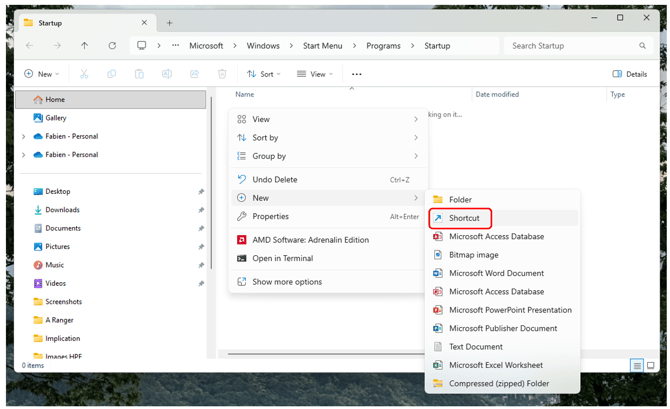
- In an empty area of this folder, right-click and select New > Shortcut.
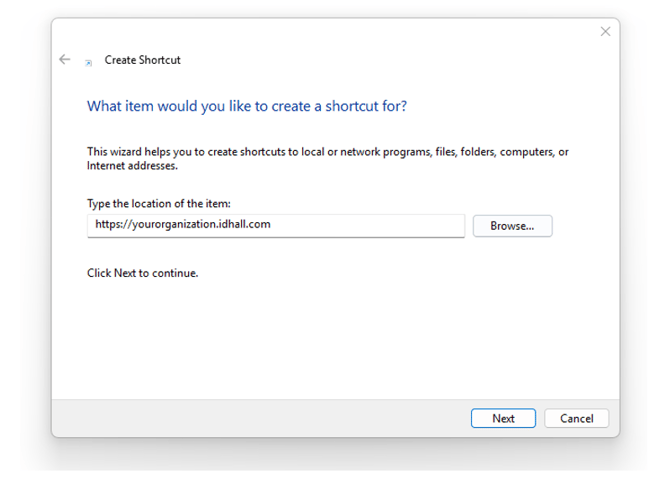
- Enter the URL of your platform, for example: https://yourorganization.idhall.com, then click Next.
- Name this shortcut and click Finish.
That’s it! At the next startup of your computer, your default browser will open and display your platform’s page.
On Mac
You’ll first need to configure Safari to open a specific page at launch, and then set your Mac to open Safari at startup.
Step 1: Configure Safari
-
In Safari, go to the Safari menu at the top, then select Settings.
-
Go to the General tab.
-
In the field "Safari opens with", choose "A new window".
-
In the field "New windows open with", choose "Homepage".
-
In the Homepage field, enter your platform URL (e.g., https://yourorganization.idhall.com).
Step 2: Configure your Mac
-
Click the Apple menu (top left).
-
Choose System Settings (or System Preferences if you’re on an older macOS).
-
Go to General > Login Items.
-
Click the + button.
-
In the window that opens, select Applications > Safari, then click Add.