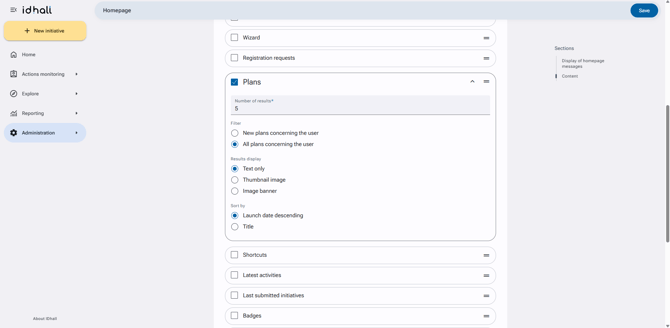
Concerning the display of the plans on the homepage, 3 types of displays are available:
- Text only
- Thumbnail image: The plans are listed with a square "thumbnail" type image on the left. The image used is the cover image, or failing that, the first image attachment associated with the plan.
- Banner image: The plans are displayed as cards with a banner image on their upper part. The image is determined according to the same criteria as above.
For the last two modes: if none of the listed plans contain images, then the plans are displayed in the "Text only" mode. For optimal rendering, these display modes should only be used if the majority (ideally all) of the plans have an image.
Sort by: It is possible to choose between "Launch date descending" and "Title".
Filters: You can also choose whether to display the new plans or all plans concerning the user.
To Change the display of the plans on the homepage
- Go to the Administration > Application management > Homepage.
- In the "Content" section, click on the triangle to expand the options in the "Plans" section.
- Select the desired display in "Results display".
- Click on the "Save" button at the bottom of the page.