
In order to guide users on how to give the required details while submitting a new initiative, help topics can be created. They can be applied by default or to a specific plan.
Create a help topic on initiative submission
- Go to Administration > Initiative management > Help topics on initiative submission.
- To create a new help, click on the "+" button in front of "Help topics on initiative submission".
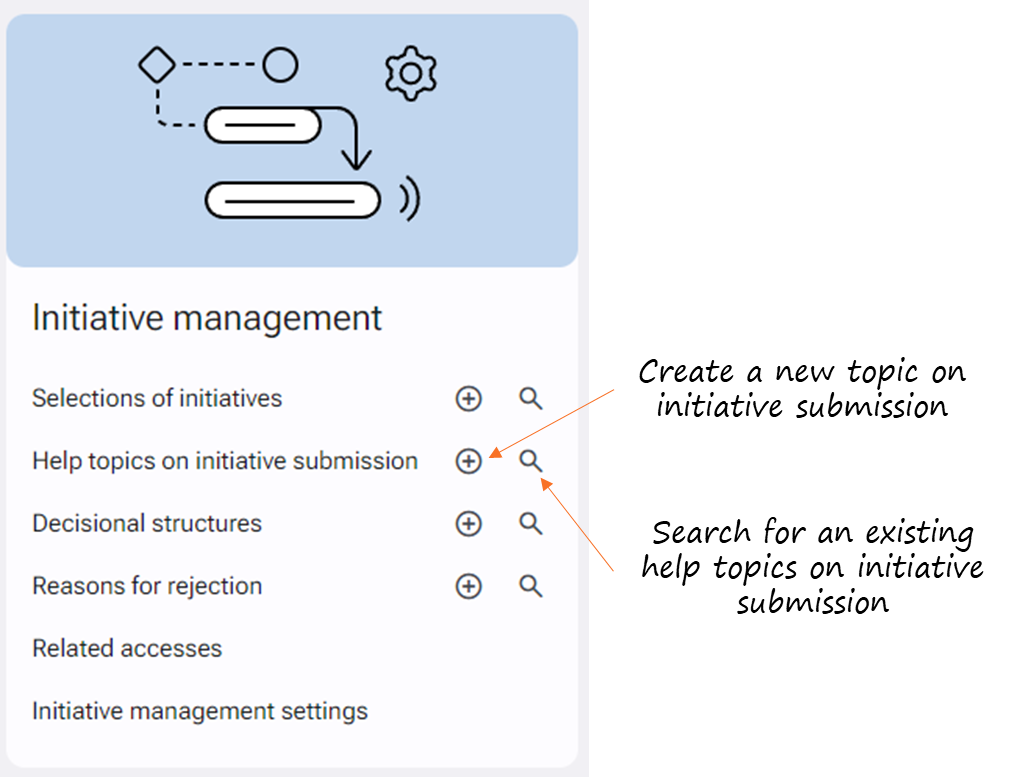
- Define your help topic in the proposed fields.
- Click on the "Save" button at the end of the form.
Apply a help topic on initiative submission by default
- Go to the Administration > Initiative management > Initiative management settings.
- In the "Submission of initiatives" section, for the "Help topic on initiative submission" field, select the desired help topic from the drop-down list.
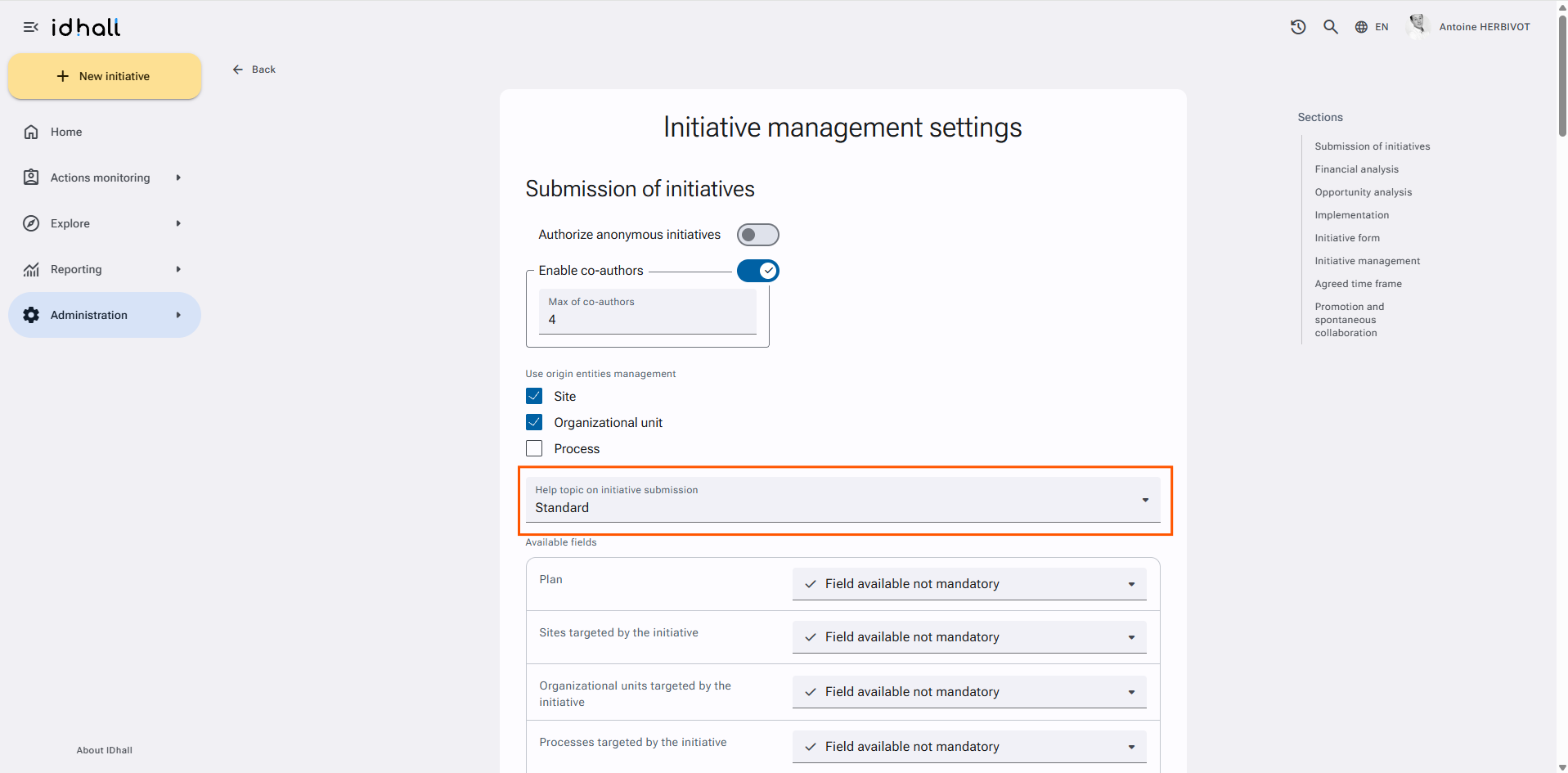
- Click on the "Save" button at the end of the form.
Apply a help topic on initiative submission to a specific plan
- Go to Administration > Plans & Domains > Plans.
- Click on the Plan you want to apply the help topic to and click on the pencil on the upper right.
- In the "Configuration and initiative processing" section, uncheck the "Use the default settings" option.
- In the "Submission of initiatives" section, uncheck the option "Default settings".
- In the "Help topic on initiative submission" field, choose in the drop-down list the help topic to be applied by default for the plan.
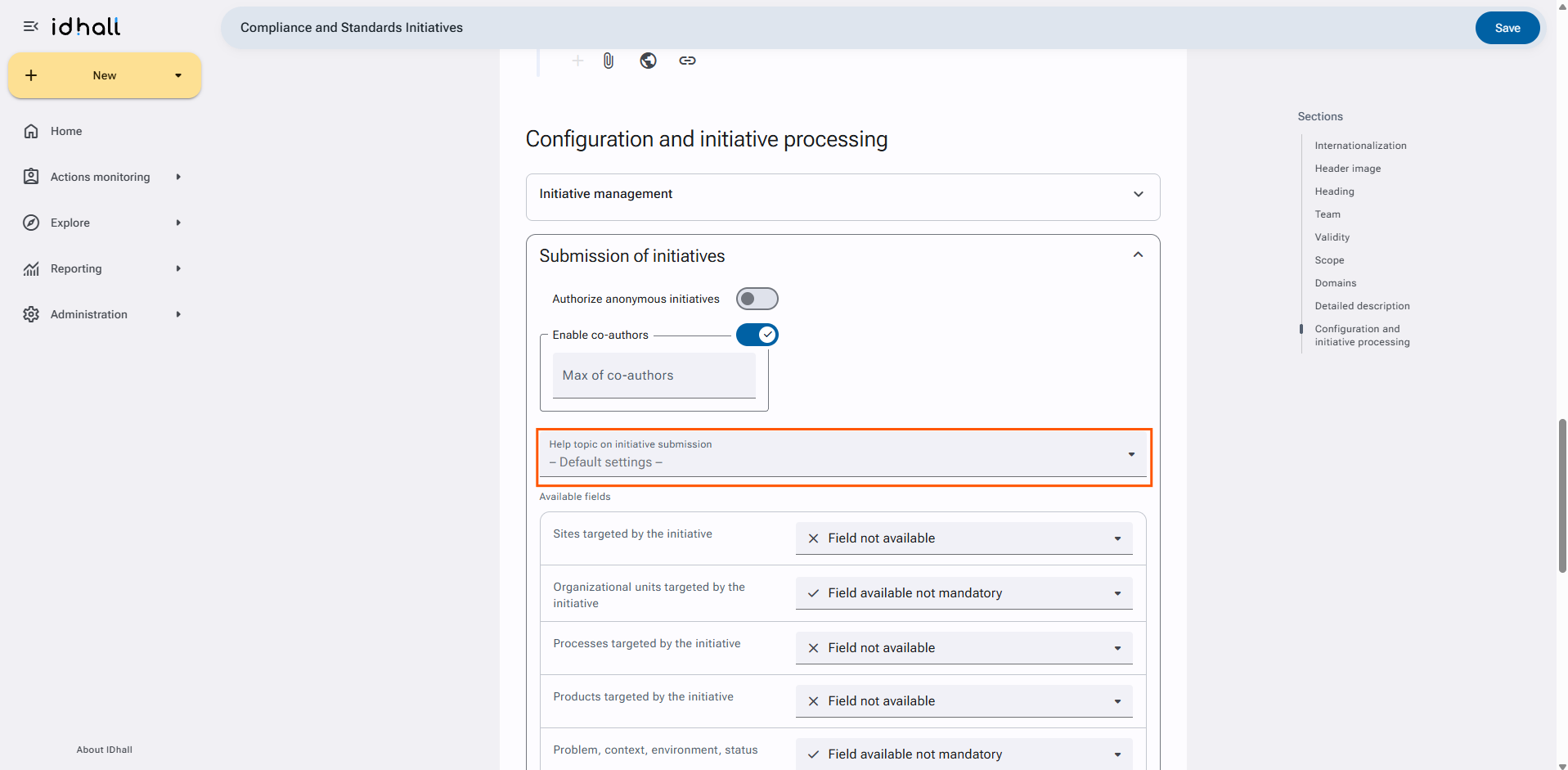
- Click on the "Save" button at the end of the form.
To modify a help topic on initiative submission
- Go Administration > Initiative management > Help topics on initiative submission.
- Choose the help topic to be modified.
- Click on the pencil on the upper right to edit the help topics on initiative submission.
- Change your help topic.
- Click on the "Save" button at the end of the form.